Wednesday, September 16, 2009

Community Tagging

A new feature of Encore 3.0 is “community tagging”, which essentially allows patrons to add subject headings not found in the MARC record. Subjects are then used as “tags” in the web catalog, allowing for many valuable applications in the teaching/learning environment.

How to add a tag:

- Perform a search
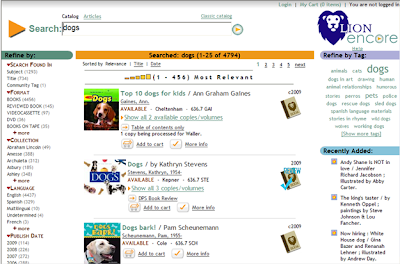

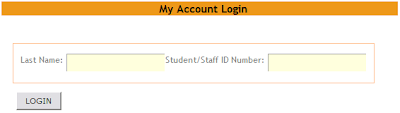
- Click on the title of the book you want to tag to see the bibliographic information. At the bottom you will see a link that says “Add a Tag”. If you are not logged in, you will be prompted to do so after clicking that link. (only DPS staff are allowed to tag books)


- Add your tag and click “submit”. You can delete the tag you added by clicking the red "X" - but you cannot delete tags added by other users.
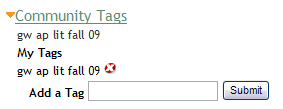


- After adding the tag, it may take 15 minutes or so for the catalog to be re-indexed and your tag to be visible to other users.


- If you notice an inappropriate tag in the catalog, please contact the helpdesk.

Export List to Email

- Click "Add to cart" for all of the items in your Encore search results that you would like to export to email


- To view the selected items, click the "My Cart" link in the top-right section of your browser window


- Enter an email address, subject, choose a format (brief or full text) and click “send”


Tuesday, September 8, 2009

Wildcard Searching is Here!

- Use an asterisk ( * ) to perform a wildcard search

- Examples: inter* will match "internal" and "internet"

- Must follow at least 2 characters

Friday, January 16, 2009

VOTE: Default Online Databases

One new feature of the Encore platform is the integration of database search results with library catalog search results for every patron query. These are presented in the bottom right corner of the screen displaying your Encore search results under a heading called "Research Pro":


We can choose 5 of our online databases to be the default options displayed within the search results and would like your input! The first 4 we have selected will be Encyclopedia Britannica, NetTrekker, Novelist & Kids Infobits. Please vote in the poll at the top-right to help us decide the 5th database.

If you have any questions about the poll, Research Pro and/or Encore, please contact the helpdesk. Polling will conclude next Friday.

Wednesday, December 10, 2008

Sorting Encore Results

The default display of Encore search results is to sort them by relevancy. However, links are available to change the sort order to alphabetical (by title) and most recent (by publish date.)


Link to DPS Homepage

Many of you had requested that the DPS seal in LION link to the DPS homepage. That change has been made.


Losing Your Scope?

When you search the catalog from your school's scoped page, the Encore results only display items from your school's collection. (As discussed previously, holdings for these items at other schools are displayed in case your copy is checked out/in transit/lost/etc.) However, some of you have noticed that if you perform a new search using the box at the top of the results page, the items are no longer refined to your collection.


Encore treats the location like any other facet- and when you use the search box in the results, it clears all of the facets you had opted into (e.g. title/author/subject only, language, material type, and location.) So if you use the search box in the Encore results and only want to see the items from your school's collection, you will need to click on your school's name from the list of collections on the left.

We realize that this is very inconvenient and/or confusing. An alternative to that method for performing a new search within the results is to click on the LION logo in the top-right corner:


Clicking on the LION logo will take you back to your school's scoped page. Then if you perform a new search, the results will automatically be limited to your collection, without having to find your school in the list.