Showing posts with label search results. Show all posts

Friday, December 3, 2010

Locked Scope Searching

Yesterday we introduced a new, highly requested, feature to Encore that locks your search results to your school's collection.


You no longer have to go back into your school's page in LION to perform subsequent searches of only your catalog- the search box at the top of the Encore results will automatically filter to books in your collection.


This functionality also works when searches for misspelled words are performed:


Friday, November 19, 2010

Encore 4.0

The LION search results platform was recently upgraded- here are some new features in the catalog:


  • ISBN & call number searching is now available in Encore. Type either number directly into your search box- you don't need to "tell" Encore what type of search you are performing.


  • Google Book previews are now available in the bibliographic details. Not all books will have a preview, so just check for the link below the jacket image.


  • Integrated results from online databases are now also displayed when you perform a search. The "top results" from articles are displayed after the first 3 results from books, and there is also an "Articles" option in the Format facet. If you only want results from online databases, click the "Articles" link at the top of the screen. (Please note: NetTrekker & Britannica Elementary results are currently not working but will be added soon.)


Feel free to leave and questions or comments about the changes here, or you can email the helpdesk.

Thursday, June 24, 2010

Enhanced Wildcard Searching

We showed you last year how to use asterisks to perform wildcard searches in Encore. However, that feature requires you to have at least 2 other characters in the search query- so you couldn't just search for * and see your entire collection displayed in the results.

To work around this issue, we've added the three character OCLC library code for Denver Public Schools ("DPU") to every bib record in the catalog. Now if you search for "DPU" from your school's scoped page, every book in your collection will display in the results- or if you search for "DPU" from the home page in LION, every book in the entire district will display in the results.

Here are some examples of uses for this new functionality:

  • Let's say you have a new student that recently moved to Denver from Moscow. If you search for DPU and then refine the results using the "Language" facet to Russian, you will be able to see every book in DPS written in the student's native language.

  • Perhaps you have a teacher at your school frantically looking for a DVD to show their class because they waited too long to order from the Video Film Library. If you search from your scoped page for DPU and then refine to "DVD" in the Format facet, you can quickly show them every DVD in your collection.

  • Searching for DPU and then using the "Publish Date" facet could quickly help you find the oldest books in your collection that potentially need to be weeded.

  • If you have a student looking for a good book to read, searching for DPU and refining your results to "Reviewed Book" in the format facet will display every book in your collection that has a published review written by a DPS librarian.


If you have any other suggestions for uses of this feature you would like to share, leave a message in the comments section or send an email to the helpdesk.

Wednesday, September 16, 2009

Export List to Email

- Click "Add to cart" for all of the items in your Encore search results that you would like to export to email


- To view the selected items, click the "My Cart" link in the top-right section of your browser window


- Enter an email address, subject, choose a format (brief or full text) and click “send”


Tuesday, September 8, 2009

Wildcard Searching is Here!

- Use an asterisk ( * ) to perform a wildcard search

- Examples: inter* will match "internal" and "internet"

- Must follow at least 2 characters

Wednesday, December 10, 2008

Sorting Encore Results

The default display of Encore search results is to sort them by relevancy. However, links are available to change the sort order to alphabetical (by title) and most recent (by publish date.)


Losing Your Scope?

When you search the catalog from your school's scoped page, the Encore results only display items from your school's collection. (As discussed previously, holdings for these items at other schools are displayed in case your copy is checked out/in transit/lost/etc.) However, some of you have noticed that if you perform a new search using the box at the top of the results page, the items are no longer refined to your collection.
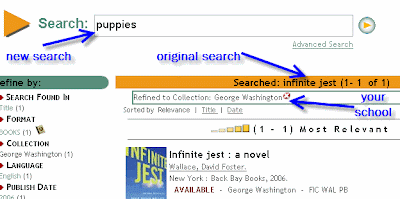


Encore treats the location like any other facet- and when you use the search box in the results, it clears all of the facets you had opted into (e.g. title/author/subject only, language, material type, and location.) So if you use the search box in the Encore results and only want to see the items from your school's collection, you will need to click on your school's name from the list of collections on the left.

We realize that this is very inconvenient and/or confusing. An alternative to that method for performing a new search within the results is to click on the LION logo in the top-right corner:
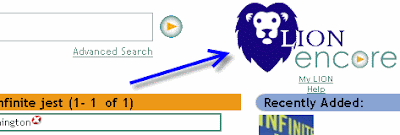


Clicking on the LION logo will take you back to your school's scoped page. Then if you perform a new search, the results will automatically be limited to your collection, without having to find your school in the list.


Monday, November 24, 2008

Encore results- "Available" ?

A common source of confusion thus far with the display of search results in Encore has been the line saying, for example, “AVAILABLE - Denver School of Arts - 599.53 GRE”- even if you have limited your search to a different school than what is shown.


Basically what is happening is that the catalog is taking the first school in alphabetical order that has an available copy of the book to display. However, if the book showed up in the search results for your school, you have a copy as well. This can be confirmed by clicking on the link saying “Show all copies.”


The vendor of our library software is working on the issue, and hopefully it will be improved in the future releases of Encore.